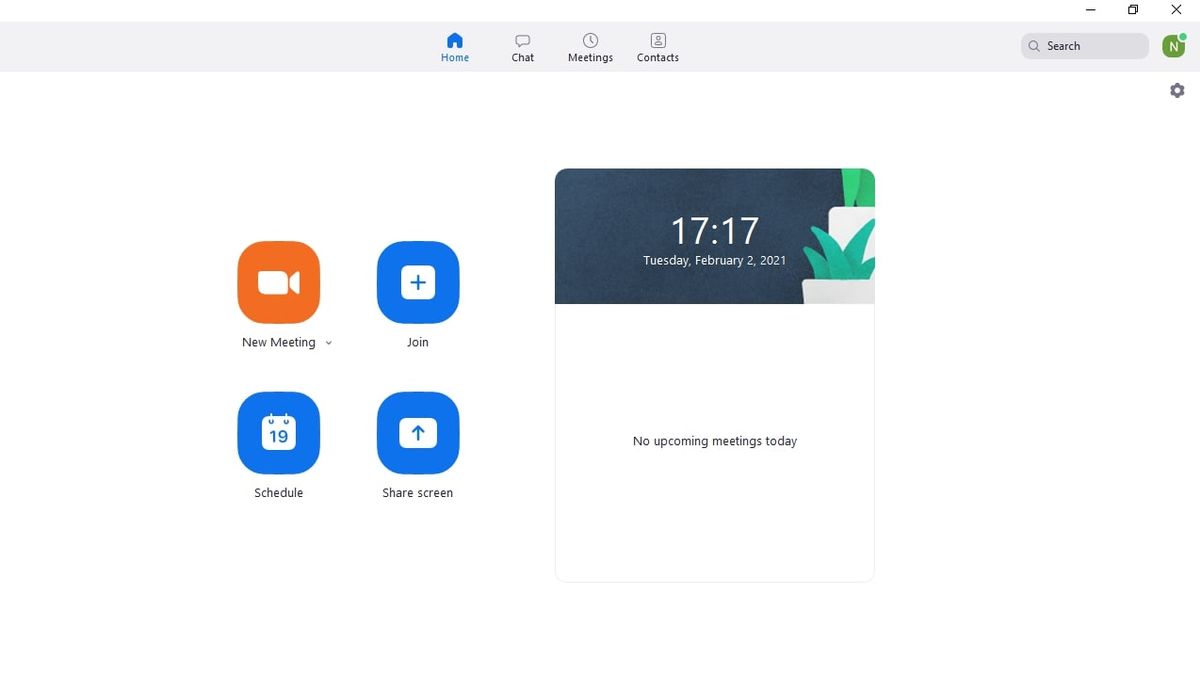
Accessing your profile, adjusting meeting defaults, and managing recordings requires knowing how to navigate the official Zoom Web Portal. While many users open the desktop application automatically, administrative changes, billing reviews, and advanced security configurations require a direct browser login.
Getting into your account shouldn't take guesswork or multiple password resets. This guide details standard browser sign-ins, single sign-on (SSO) configurations, and troubleshooting steps for common access roadblocks.
Navigating to the Official Zoom Sign In Page
Direct your browser to the official Zoom Sign In page. Bookmark this specific address to avoid phishing pages or third-party redirects.
The landing page offers multiple authentication routes depending on how your account was originally established. You can log in using:
- Standard email address and password credentials.
- Single Sign-On (SSO) for corporate or educational accounts.
- Third-party authentication providers including Google, Apple, Facebook, or Microsoft.
If you use a third-party provider, click the corresponding icon below the primary email field. A pop-up or redirect will ask you to authorize your credentials through that external service before landing back on your Zoom dashboard.
Step-by-Step Browser Login Instructions
Standard account holders can complete the process in a few moments by following these steps:
- Open any modern web browser like Chrome, Safari, Firefox, or Edge.
- Navigate to
zoom.us/signin. - Type your registered account email into the primary text field and click Next.
- Enter your account password. If you haven't enabled multi-factor authentication, click Sign In.
- Complete any secondary verification prompts if your organization requires security codes.
Once authenticated, you'll land directly on your profile overview page. From here, the left-hand navigation pane grants access to your profile data, scheduled meetings, webinar settings, cloud recordings, and global account preferences.
Handling Corporate and Educational SSO Access
Organizations often mandate Single Sign-On protocols. Trying to use a standard password on a managed domain usually results in an error message.
If your company or university uses SSO, look for the company domain option during login. You'll need your organization's specific URL suffix, typically formatted as company-name.zoom.us.
- Navigate to your institution's custom Zoom portal URL.
- Click the Configure or Sign In with SSO option.
- Enter your corporate credentials when redirected to your internal identity provider page (such as Okta, Microsoft Entra ID, or Google Workspace).
- Approve the authentication request to bounce back into your authorized Zoom workspace.
Troubleshooting Common Login Roadblocks
Even with correct credentials, minor technical glitches can block access. Here is how to resolve the most frequent sign-in failures.
Password Resets That Don't Arrive
If you request a password reset and the email fails to arrive within two minutes, check your spam or junk folder first. Corporate email firewalls frequently block automated verification links from external domains. If nothing appears, verify that you entered the exact email address tied to the active account. Secondary alias emails often fail to trigger automated recovery systems.
Browser Cookie Conflicts
Looping sign-in screens usually point to corrupted browser cache or blocking third-party cookies. Clear your browser cache for Zoom domains or open an incognito window to test authentication in a clean session.
Version Mismatches and Expired Sessions
Zoom periodically invalidates browser tokens for security compliance. If your session drops unexpectedly mid-workflow, re-authenticate manually rather than refreshing an expired tab.
Frequently Asked Questions
Can I change my login email address inside the web portal?
Yes. Navigate to your Profile tab within the portal, locate your email address entry, and click the edit option next to it. You will need access to both your old and new email inboxes to confirm the change.
What should I do if my account gets locked out?
Zoom temporarily locks accounts after multiple failed login attempts to prevent unauthorized access. Wait roughly 30 minutes before trying again, or use the automated forgot-password utility to bypass the lockout immediately.
Is two-factor authentication mandatory for web portal access?
It depends on your account type. Free personal accounts can enable two-factor authentication optionally via authenticator apps or SMS, while enterprise administrators often enforce 2FA globally across all organizational users.
Why does my browser keep redirecting me to the desktop app?
Operating systems often associate Zoom protocol links with locally installed desktop clients. You can bypass this behavior by using a private browsing window or adjusting your browser's external protocol handler permissions.