Joining a virtual conference shouldn't require hunting through endless email threads for an elusive hyperlink. When you have a numerical code handy, knowing how to execute a Zoom log in with meeting ID lets you bypass apps or browser extensions and jump straight into your call. Whether you're using a desktop computer, a mobile phone, or a standard telephone, entering a raw meeting number is the fastest way to connect.
This guide breaks down exactly how to use a meeting ID across every platform, what to do when security prompts get in your way, and how to troubleshoot common connection errors without wasting precious minutes before a call.
Understanding Zoom Meeting Identifiers
Before punching numbers into your screen, it helps to understand what those digits actually represent. Zoom utilizes two primary types of numerical identifiers for virtual rooms, and recognizing the difference saves confusion when connecting.
- Generated Meeting IDs: These are dynamic, 11-digit numbers created specifically for a single scheduled or instant event. Once the meeting concludes, the identifier expires or becomes inactive for new sessions.
- Personal Meeting IDs (PMI): This is a permanent 10-digit number tied directly to a specific user account. Think of it as a virtual office or phone extension that stays the same for every spontaneous or recurring chat hosted by that person.
Neither format requires you to log into a permanent user account just to participate. As long as you possess the digits and any associated security codes, you can join as a guest from virtually any internet-connected device. To understand the complete picture, check out the detailed article by The New York Times.
Step-by-Step: Joining via Desktop App
The Zoom Workplace desktop client offers the most stable environment for long video calls, screen sharing, and interactive chat. If you already have the desktop application installed on your Windows or macOS machine, follow these steps to enter your code:
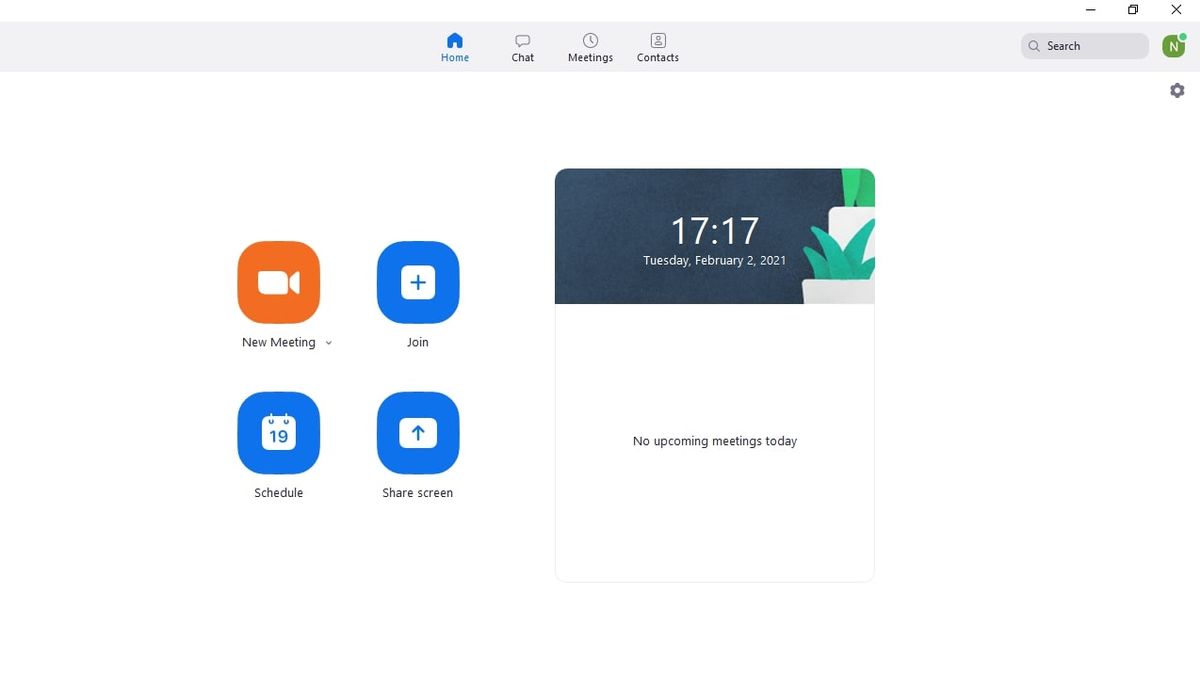
- Launch the Zoom application from your desktop, taskbar, or applications folder.
- If you don't want to sign in with an account, click the prominent Join a Meeting button on the welcome screen. If you are already signed in, click the Home or Meetings tab and select Join.
- Type or paste the 10 or 11-digit meeting ID into the designated text field.
- Enter your preferred display name so other participants recognize you in the room.
- Check your audio and video preferences using the toggle switches below the name field to ensure your microphone or camera starts in the correct state.
- Click Join.
- When prompted by the security overlay, input the meeting passcode supplied by your host and click join again.
Step-by-Step: Joining via Web Browser
If you don't have the desktop client installed and prefer not to download software, you can access the session directly through your web browser. This method works reliably on Google Chrome, Mozilla Firefox, Microsoft Edge, and Apple Safari.
- Open your browser and navigate to the official portal at Zoom Join.
- Enter your meeting ID into the text box on the landing page and click Join.
- Your browser will likely trigger a pop-up window asking permission to open the Zoom application. Click Cancel on this system prompt.
- Look toward the bottom of the webpage for a secondary text link that reads Join from your browser and click it.
- Type your display name and complete any audio permission requests from your browser.
- Input the meeting passcode when requested to enter the active room.
Keep in mind that browser-based participation relies on the host having enabled browser access from their account settings. If that option is disabled, you'll be prompted to install the client software.
Step-by-Step: Joining via Mobile Device
Smartphones and tablets offer a streamlined interface for joining on the go. Whether you use an iPhone, iPad, or Android device, the process takes only a few taps.
- Open the Zoom mobile app from your home screen.
- Tap Join a Meeting if you are logged out, or tap the Join icon from the main dashboard if logged in.
- Input the meeting ID numbers into the top field.
- Adjust your display name and check your audio/video toggles (such as "Don't Connect To Audio" or "Turn Off My Video") depending on your current environment.
- Tap Join and type the security passcode when requested.
Joining Without Internet: Using a Telephone Line
When internet connections fail or you find yourself traveling without data, you can still dial into a Zoom meeting using standard voice audio.
- Look up your local dial-in teleconferencing phone numbers listed in the meeting invitation.
- Dial that number from your mobile phone or landline.
- When prompted by the automated voice system, enter your meeting ID using your phone keypad, followed by the pound (#) key.
- If the system asks for a participant ID, press the pound key again to skip it unless you linked a computer audio session.
- Enter the meeting passcode followed by the pound key to finish connecting.
Common Mistakes and Troubleshooting
Even with correct numbers, minor technical hurdles can block your entry. Review these common pitfalls to resolve issues quickly.
- Incorrect Passcode Errors: Zoom security standards require a passcode or a waiting room for all sessions. If you receive an invalid passcode error, check for accidental trailing spaces if you copied and pasted the code from a chat window.
- Stuck in the Waiting Room: If your screen displays a message stating that the host will let you in soon, your code and password were correct. You simply need to wait for the host to admit you from their participant management panel.
- Typo in the 10-Digit or 11-Digit Code: Double-check every digit. Entering even one wrong number will redirect you to an empty room or trigger an error message stating that the meeting does not exist.
For official software updates and system status reports, consult the Zoom Support Center.
Frequently Asked Questions
Can I join a Zoom meeting with just the meeting ID?
You need both the meeting ID and the security passcode in most cases. While older public meetings allowed entry via ID alone, modern security defaults require a passcode or waiting room approval.
Do I need to create an account to use a meeting ID?
No account is required to participate as a guest. You can enter a meeting ID through the desktop application, mobile app, or browser portal without signing up for a paid or free user profile.
Where do I find the meeting ID if I am the host?
If you are hosting, your meeting ID is displayed at the top of the participant window during an active call. On the desktop client, click the green shield icon or meeting information icon in the top-left corner of your screen to reveal the numbers.
Why won't my browser let me join without downloading the app?
Meeting hosts have the option to disable browser-based participation for security reasons. If the host turned off that feature, your browser will insist on downloading the client software before allowing access.